How to Download Photos from Your Gallery
If you have received a Pixieset gallery from us and want to save your images, the good news is that the process is simple. Pixieset is designed to make downloading straightforward even for first time users. Below is a step by step guide to help you get your photos quickly and safely.
1. Open Your Gallery
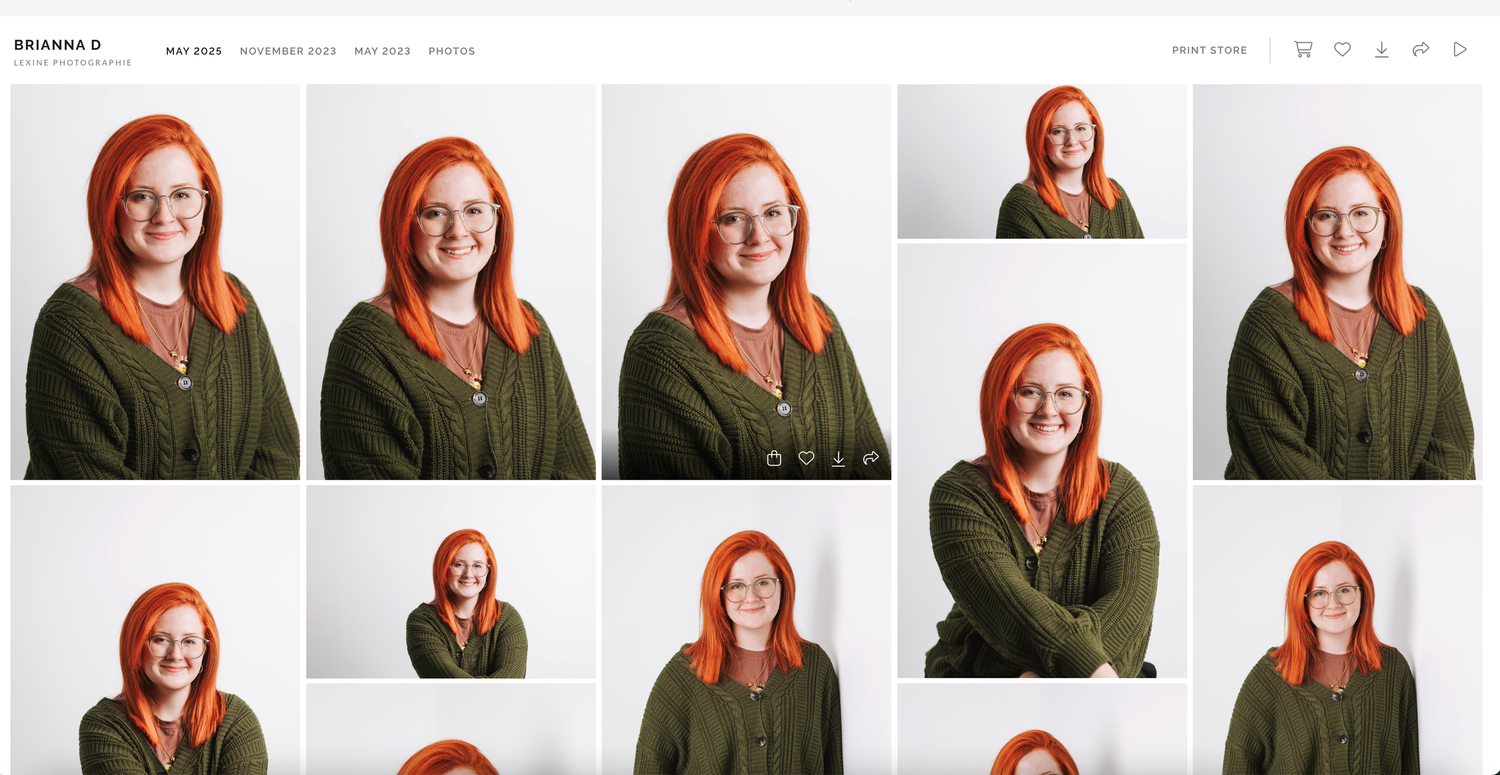
Start by clicking the gallery link sent by your photographer. This will take you directly to your collection where all images are displayed in clean, easy to browse sections.
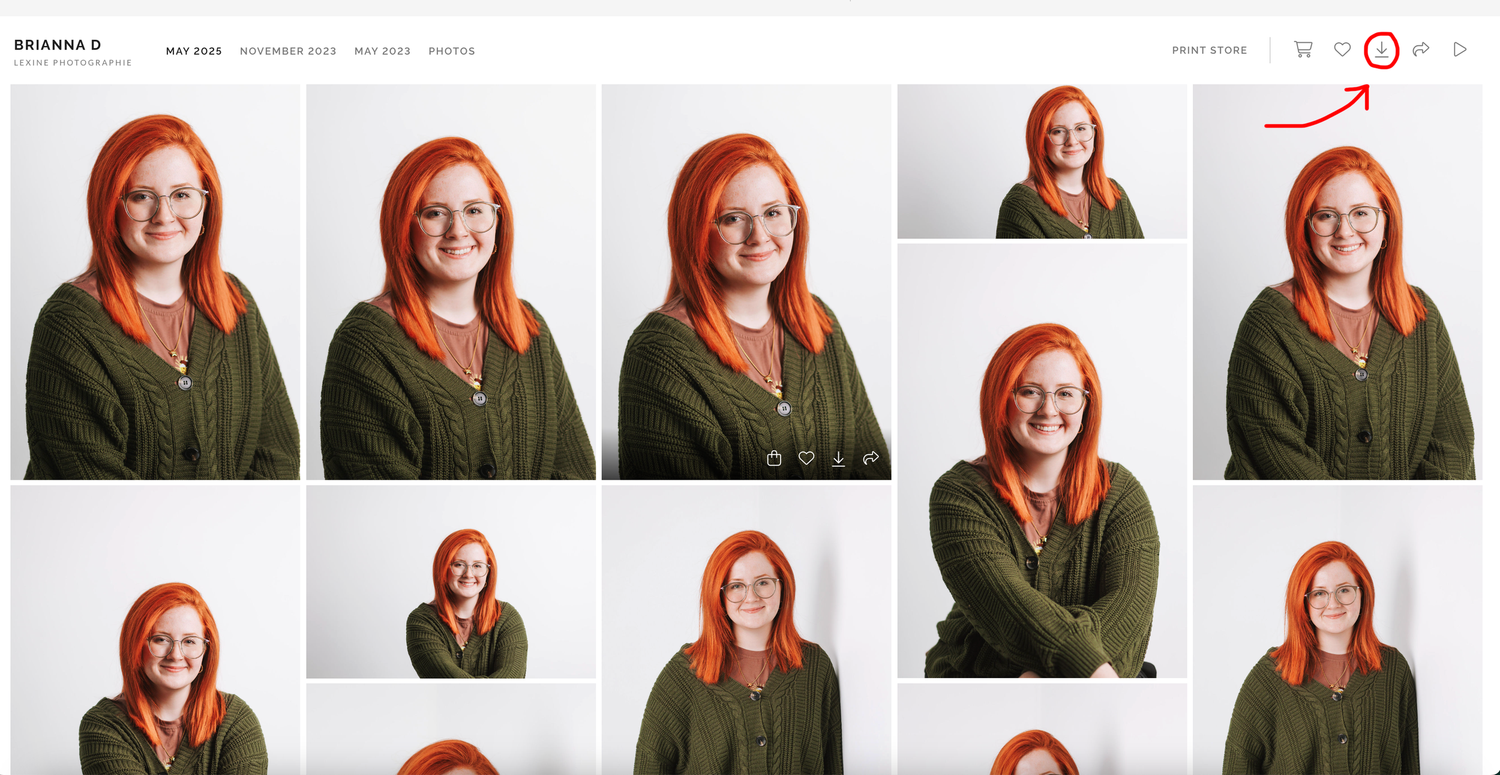
2. Look for the Download Button
At the top right corner of the screen you will usually see a Download button. If you are viewing on a phone or tablet, it might appear inside a small menu icon. Tap or click this button to begin.
3. Enter Your Email (If Requested)
We require an email for sending the download link. This is not a download code. It is simply a way for Pixieset to deliver your files securely. If prompted, type your email and you will receive a link once your download is ready.

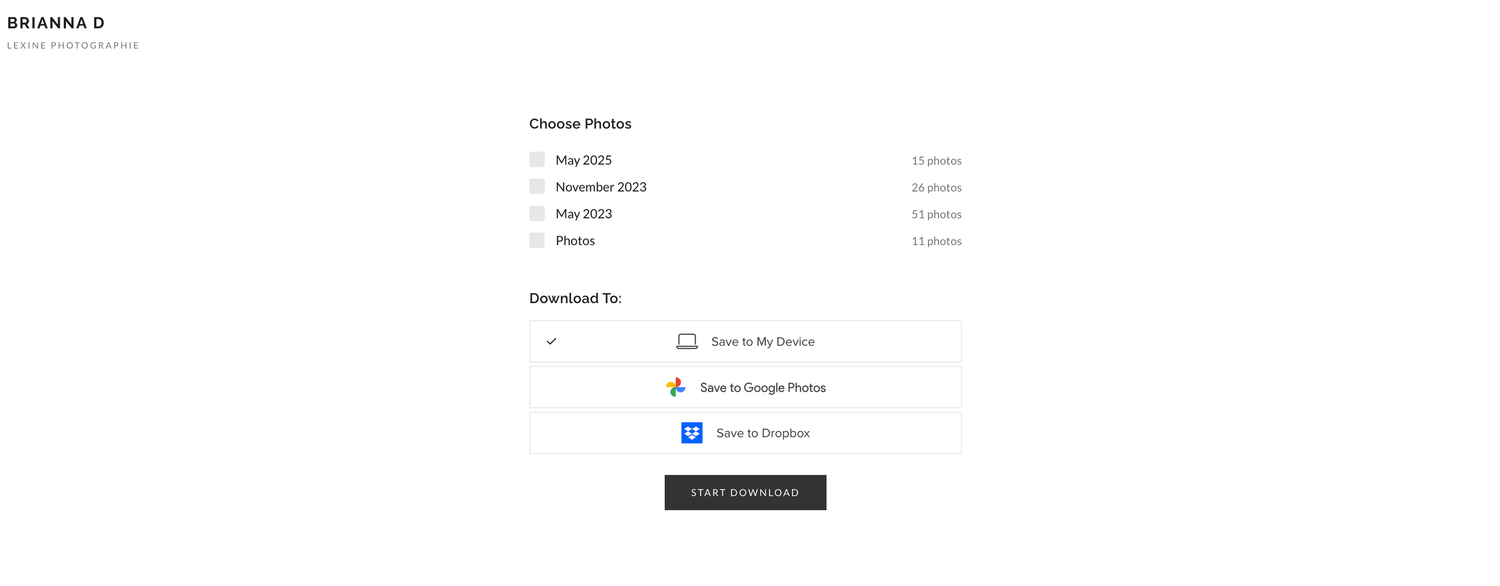
4. Choose What You Want to Download
Pixieset will give you different options. You can download the entire gallery or select specific sets or images. Many people prefer to save everything at once for convenience, but you can take your time and choose only the photos you want. We only guarantee a secure backup of your files for a maximum of 6 months after delivery. Make sure you keep a safe copy for yourself!
5. Save the Files
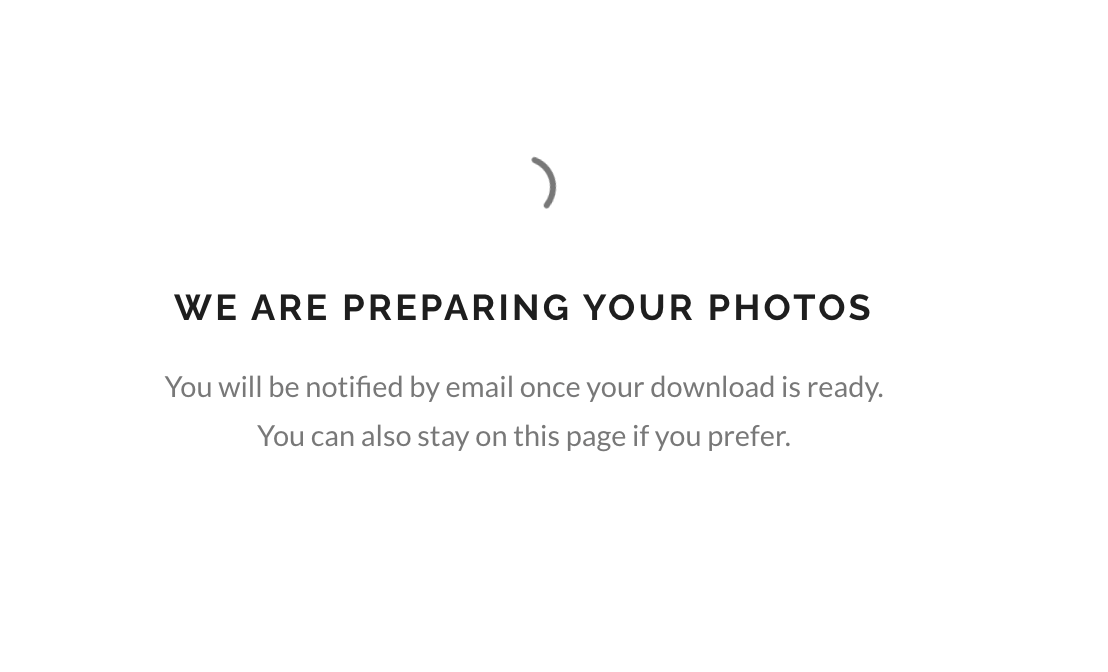
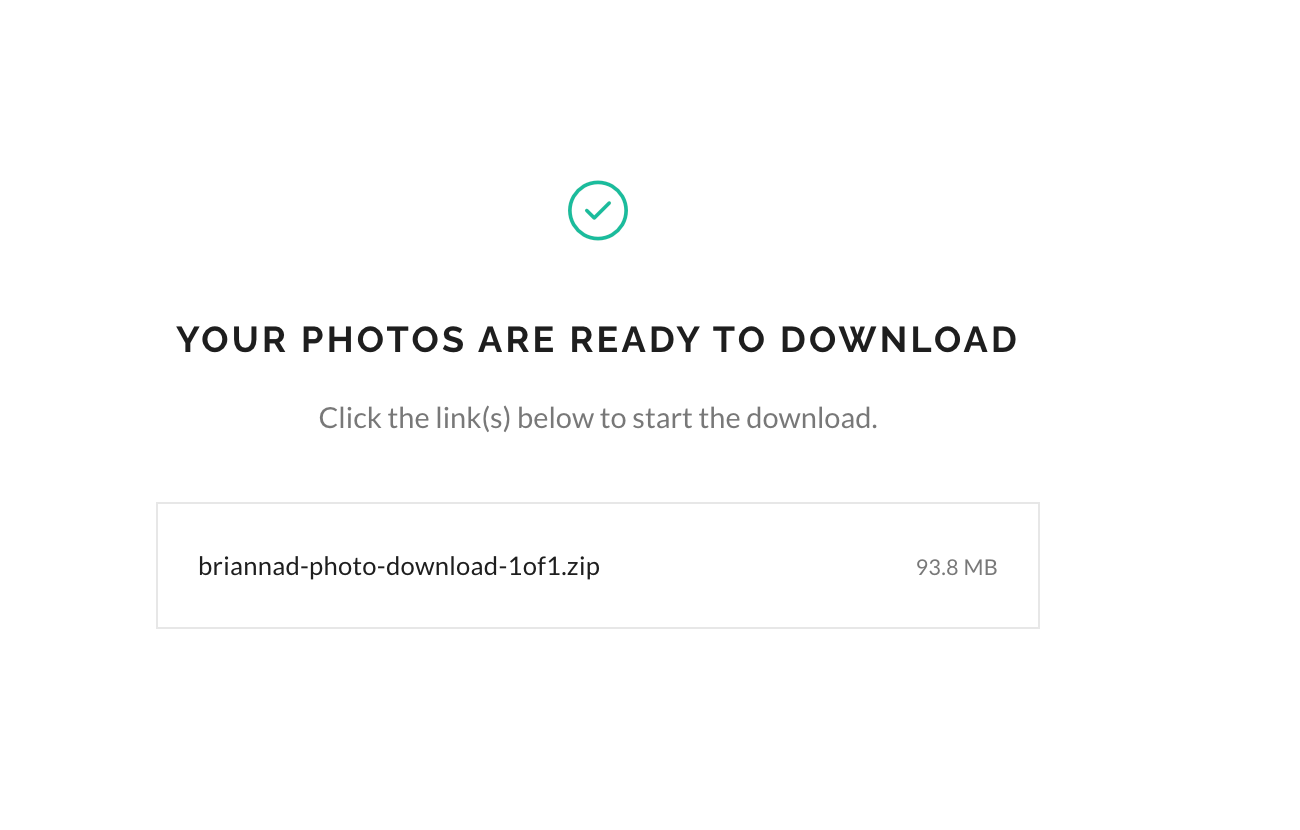
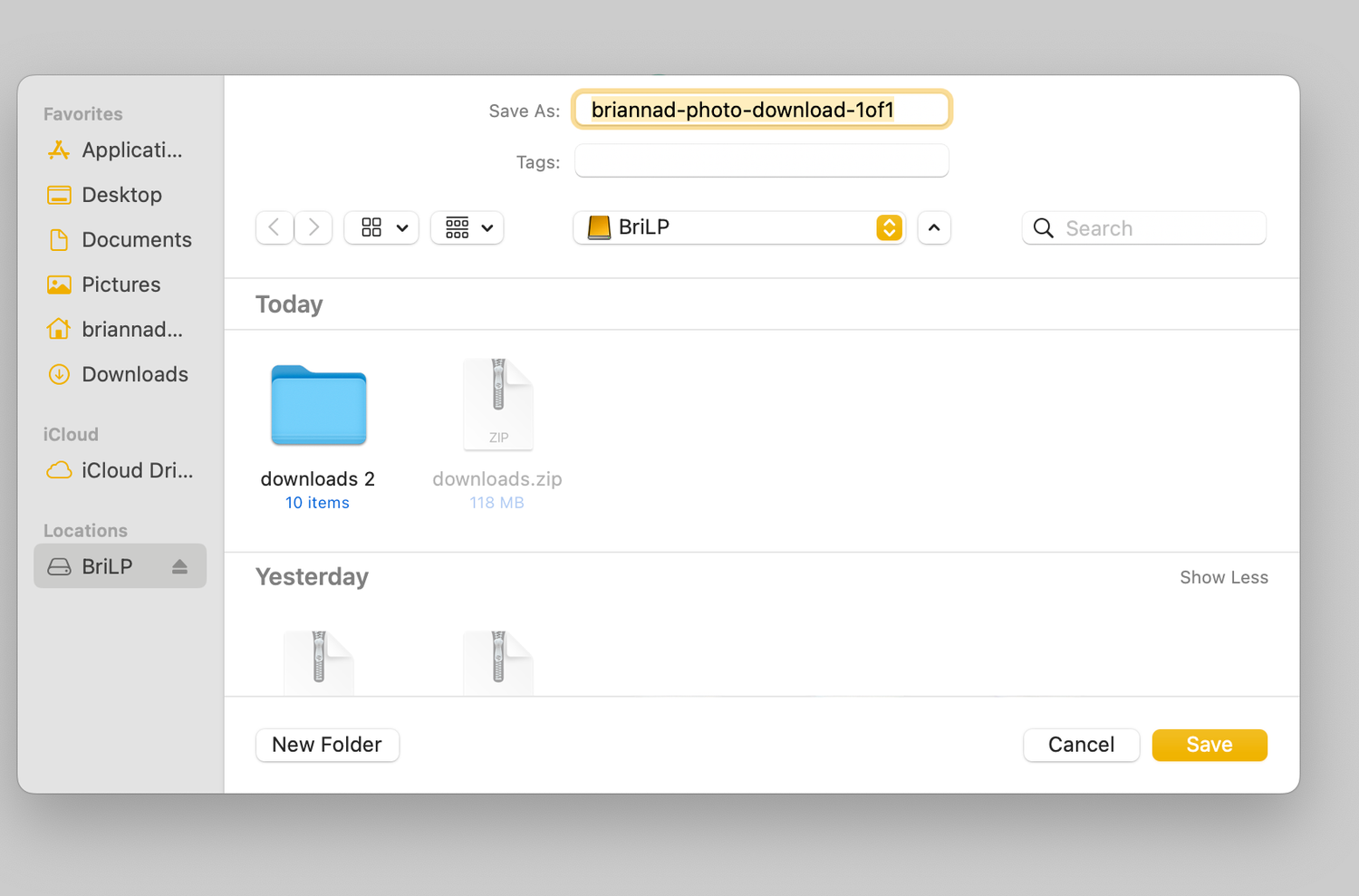
After confirming your download, Pixieset will package your images into a zip file. Once the file is ready, click to save it to your computer, tablet or phone.
On a computer, your browser will save the file to your default Downloads folder.
On a phone, you may be asked to choose a location or your device will save it to your Files app or photo library.
6. Unzip and Enjoy
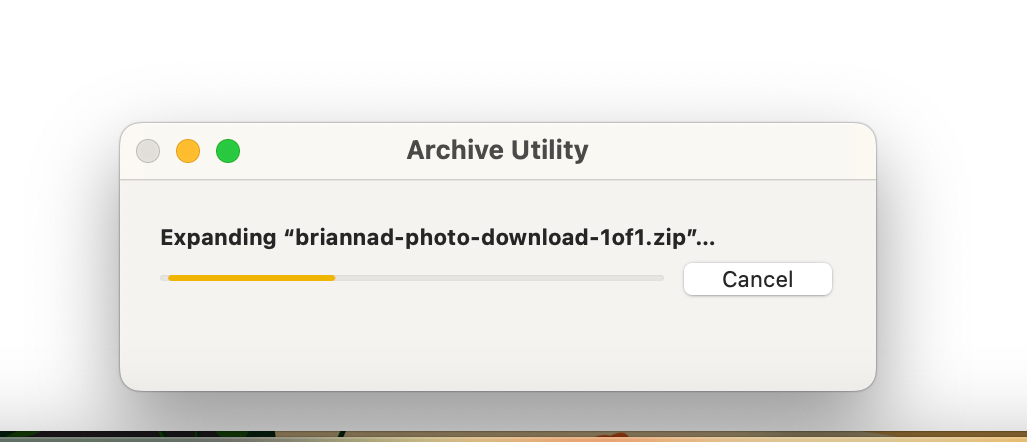
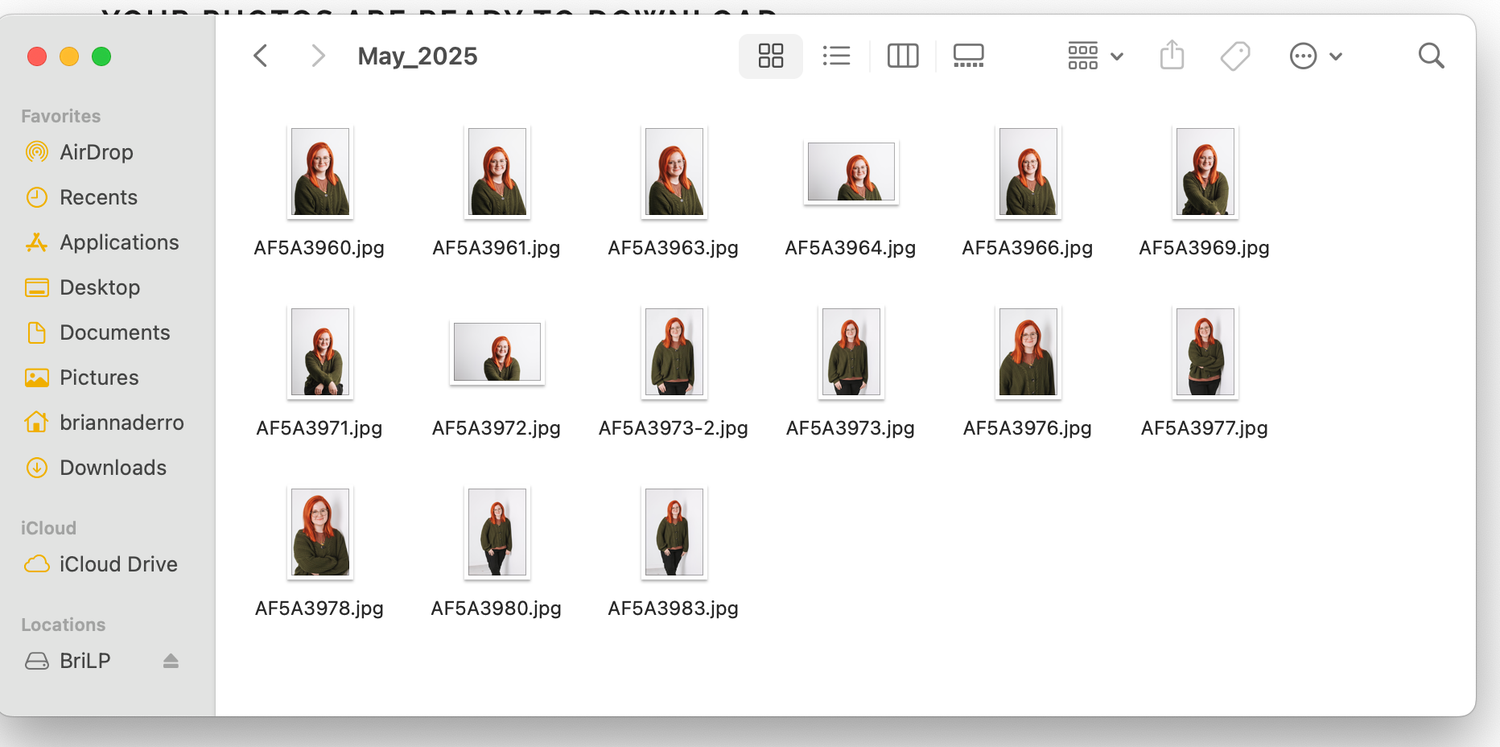
If you downloaded a zip file, open it the same way you would open any compressed file. After unzipping, you will see your high resolution photos organized neatly and ready to use.
Downloading Directly to Dropbox or Google Photos
Pixieset also gives you the option to save your images to cloud storage. This can be helpful if you are working on a phone with limited space or if you want to keep everything backed up in one place.
Saving to Dropbox
- When the download options appear, choose the Dropbox icon.
- Sign in to your Dropbox account if you are not already logged in.
- Select the folder where you want the images to go.
- Confirm the upload and Dropbox will store your files automatically.
Saving to Google Photos
- Select the Google Photos icon from the download options.
- Sign in to your Google account if needed.
- Approve the connection so Pixieset can transfer the images.
- Google Photos will import your files and place them into your library.
Cloud storage is a great way to keep your gallery safe and accessible from any device. It also prevents your phone or computer from filling up with large files.


